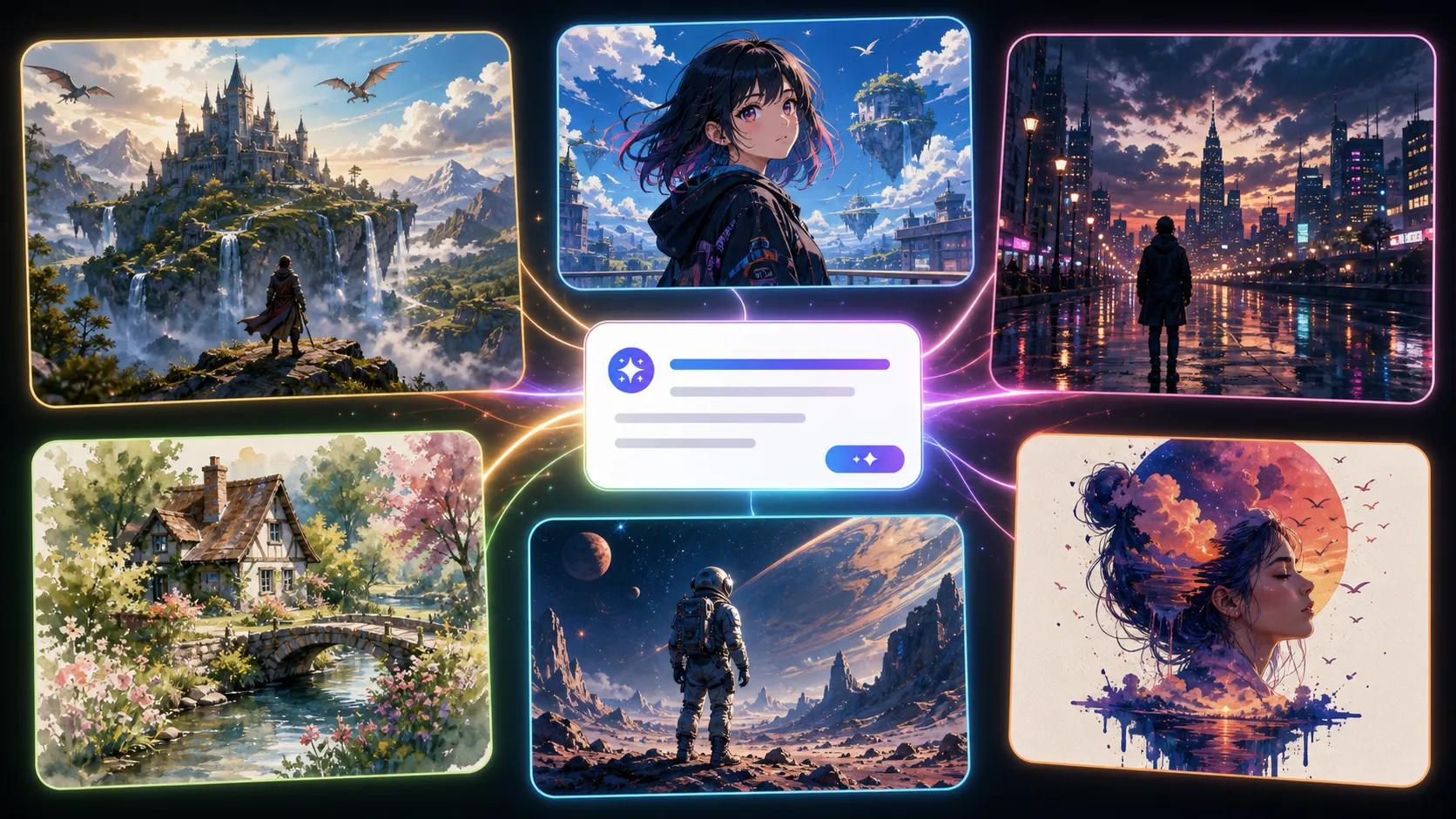
Text to Image AI Generator

Turn a written idea into polished visuals with leading AI image models. Describe the subject, scene, style, lighting, composition, and mood, then generate high-quality images from text without uploading a reference.

Credits required:2
Samples
Example 1
History

How to Use the Text to Image AI Generator

1

Choose a Text-to-Image Model

Choose an available image model based on the result you need, such as fast creative drafts, stronger prompt adherence, realistic detail, higher resolution, format control, or repeatable seed-based variations.

2

Write a Clear Visual Prompt

Describe the subject, setting, style, mood, lighting, composition, camera angle, colors, and any details the image should include. The more specific the prompt, the easier it is for the model to match your intent.

3

Generate, Compare, and Refine

Run the model, review the result, download the image, or adjust your prompt and settings. Switch models when you want a different style, stronger realism, better text rendering, or more control.

One workspace for different visual styles

Multiple Generation Styles in One Workflow

NanoImg.io lets you generate images from text with multiple available image models in one prompt workflow. Compare different visual styles, realism levels, prompt interpretations, and output controls without jumping between separate tools.

Text to image AI generator preview

Better Prompt Understanding and Visual Control

Modern text-to-image models translate natural language into visual details such as subject, style, lighting, mood, framing, and composition. Use detailed prompts to create product concepts, portraits, posters, illustrations, backgrounds, and marketing visuals with more predictable results.

Model Strengths for Speed, Realism, Quality, and Resolution

Use faster model options for quick ideation, prompt-focused options when instruction following matters, realistic styles when lighting and visual coherence are important, and higher-resolution or seed-based controls when output detail and repeatability matter.

Controls That Match Each Generation Task

Each model exposes the settings it supports, including quality, image size, resolution, aspect ratio, and seed options. Start simple with a prompt, then fine-tune settings when you need sharper output, a specific format, or more consistent variations.

Text to Image AI Generator FAQ

Common questions about creating images from text prompts on NanoImg.io

A text to image AI generator creates images from written prompts. You describe the subject, scene, style, lighting, and composition, and the selected AI model turns that description into a generated image.
Choose based on your goal. Use faster options for creative drafts, prompt-focused options for stronger instruction following, realistic styles for coherent lighting and scenes, and higher-resolution or seed controls when detail and repeatability matter.
Include the main subject, environment, style, mood, lighting, colors, camera angle, and important details. A prompt like "a modern skincare product on a marble counter, soft window light, clean commercial photography" gives the model more guidance than a short vague request.
AI image models interpret prompts probabilistically, so complex scenes, rare concepts, exact layouts, and small details can vary. Try making the prompt more specific, removing conflicting instructions, changing the model, or generating several versions.
Some newer models are better at text rendering, but exact typography can still fail, especially with long words, small labels, or complex layouts. Keep text short, describe placement clearly, and compare models when text accuracy matters.
Small structures such as fingers, teeth, eyes, and lettering are still difficult for many image models. Higher-quality settings, clearer prompts, simpler compositions, and regenerating alternatives can improve the result.
Commercial use depends on the selected model, the platform terms, your prompt content, and local law. Avoid using protected brands, copyrighted characters, or living artists' exact styles unless you have the right to do so.
Yes. This page opens in Text to Image mode, but the same tool also supports Image to Image mode. Switch modes when you want an uploaded image to guide the subject, composition, style, or edit direction.